

Cricut Design Space Troubleshooting: How to Fix Common Cricut Problems
If you’re close to throwing your Cricut out of the window… stop right there.
Before you banish it to the craft room graveyard, take a breath and try these Cricut troubleshooting tips. Whether your Cricut isn’t cutting properly, Design Space keeps crashing, or Print Then Cut won’t line up, these quick fixes can save you time, materials, and your sanity.
New to Cricut? If you’re a beginner, my online hub Cutting Machine Confident has short tutorials, cheat sheets, free practice files, supplier links, and everything I wish I had when I first got my Cricut.
Continue reading below, or take a look at my video comparison:
The content below contains affiliate links and we may earn a commission if you shop through them, however this won't cost you anything, it just helps us to keep the site running for free. For more information on affiliate links, see the disclosure here.
1. Cricut Cutting Too Deep or Not Deep Enough
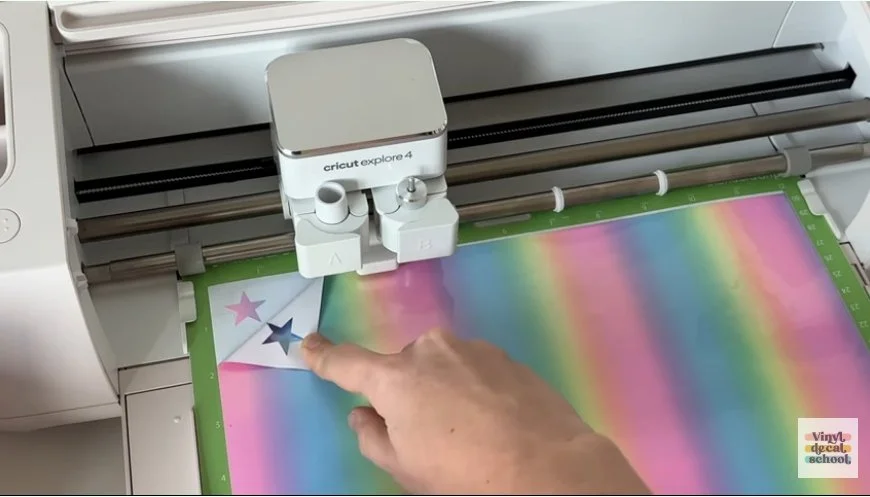
One of the most common Cricut problems is when your machine either doesn’t cut all the way through your material or goes straight through your cutting mat.
Troubleshooting steps:
Do a test cut. Especially when using new materials or blades.
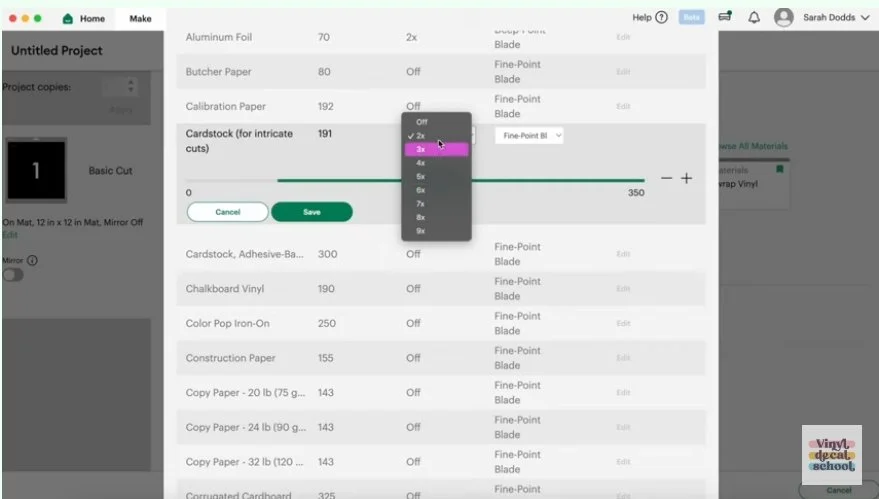
Check cut settings in Cricut Design Space. Go to your material settings and adjust the pressure or enable multi-cut.
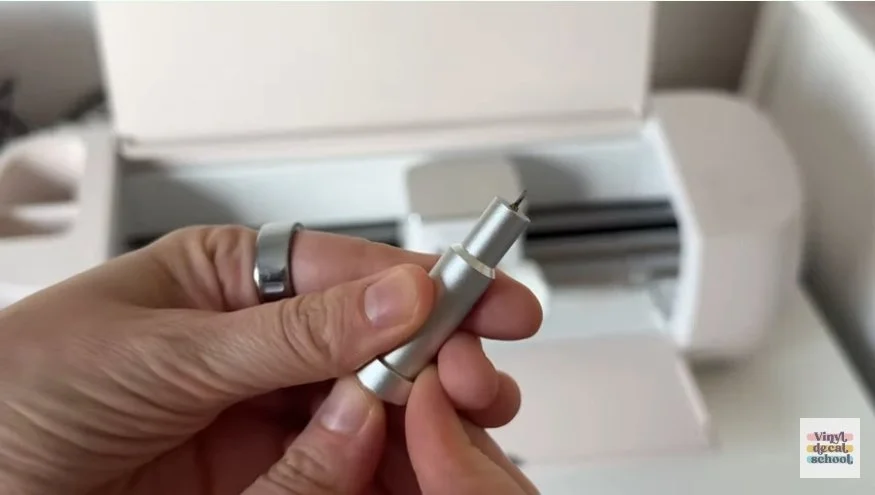
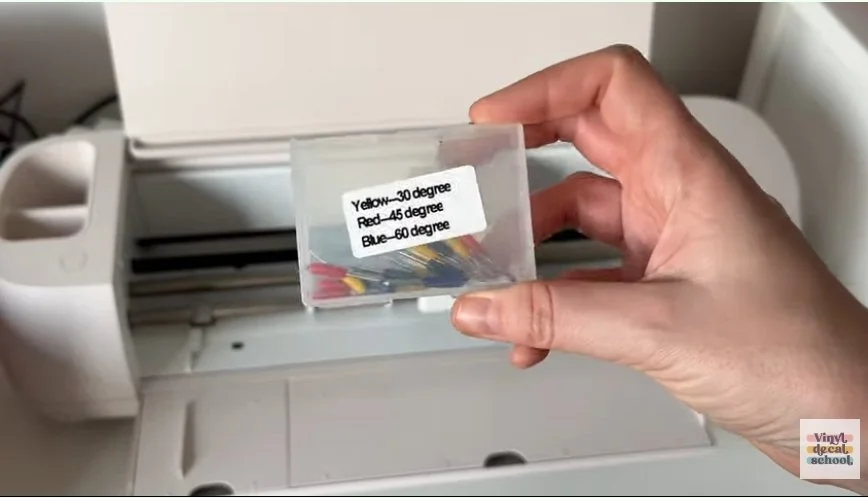
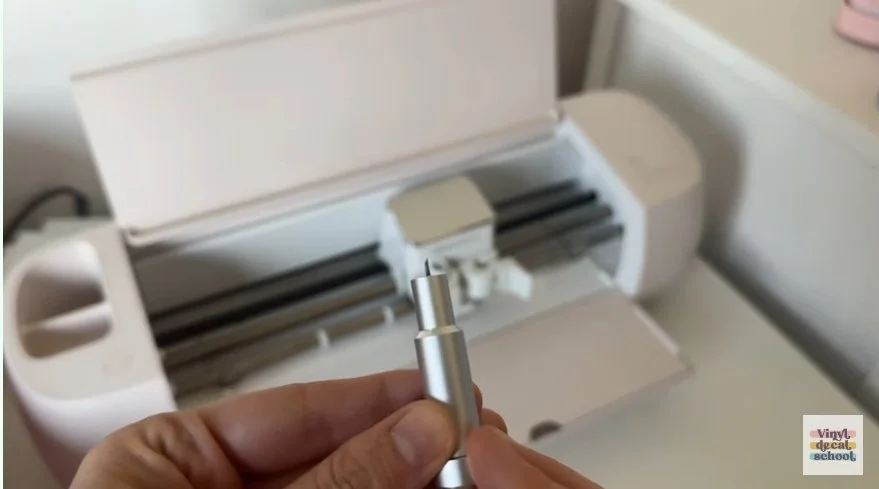
Replace the blade if needed. A dull blade can cause inconsistent cuts. Non-Cricut branded blades are fine unless your machine is still under warranty.
2. Cricut Design Space Freezing or Crashing
If your Cricut software is slow, freezing, or won’t load:
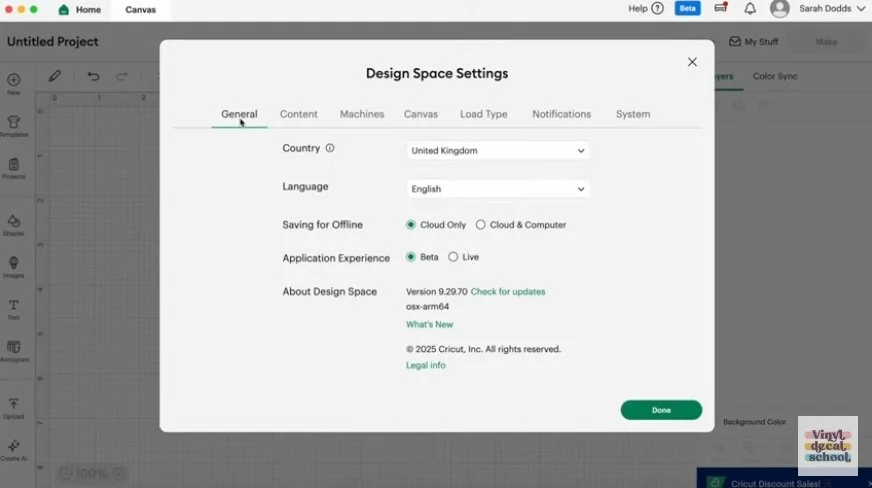
Update Design Space. Outdated versions can cause glitches.
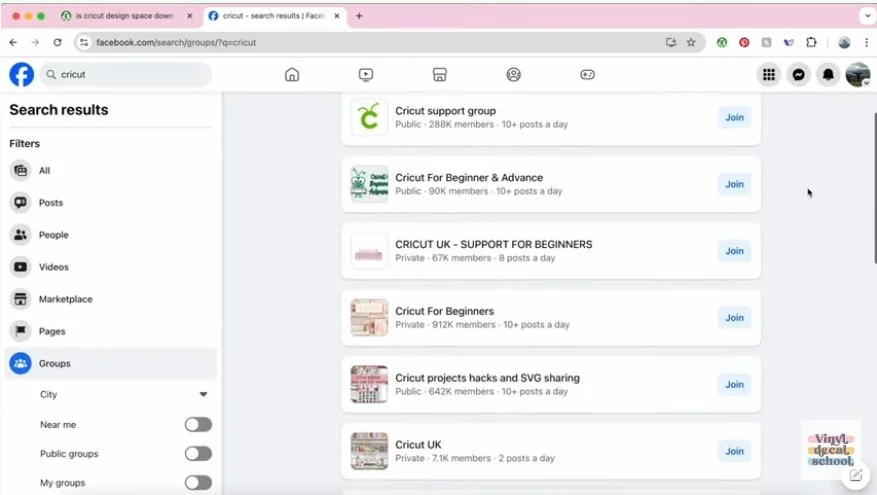
Check online forums. Cricut Facebook groups or Reddit can confirm if it’s a widespread issue.
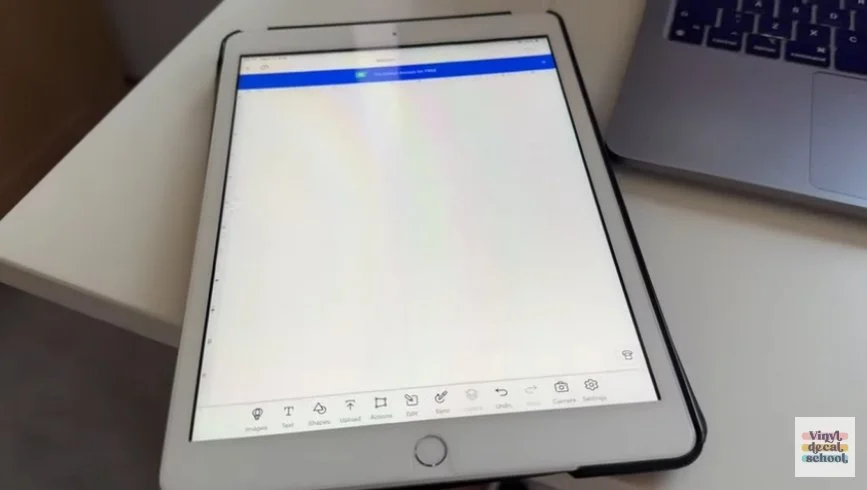
Switch devices. Try the desktop version if the mobile app is glitchy, or vice versa.
Check your internet connection. Poor connectivity can cause crashing or lag.
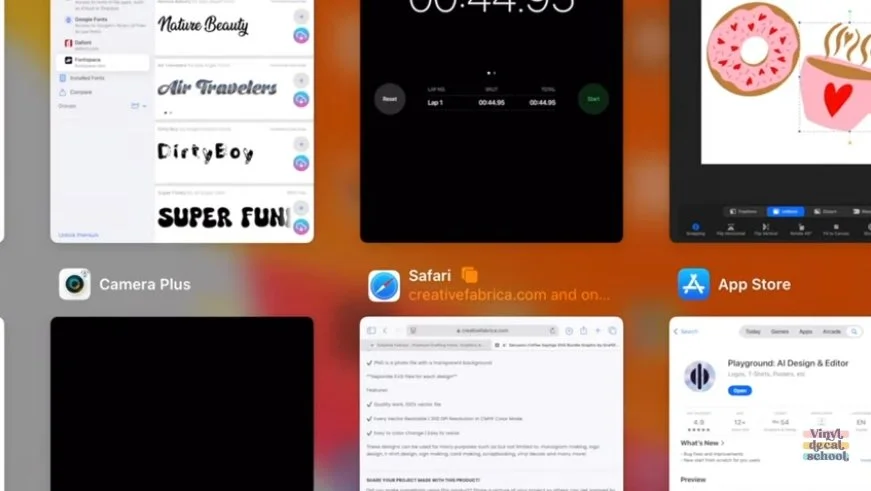
Close unused apps/tabs. This frees up memory, especially on phones and tablets.
3. Cricut File Not Working
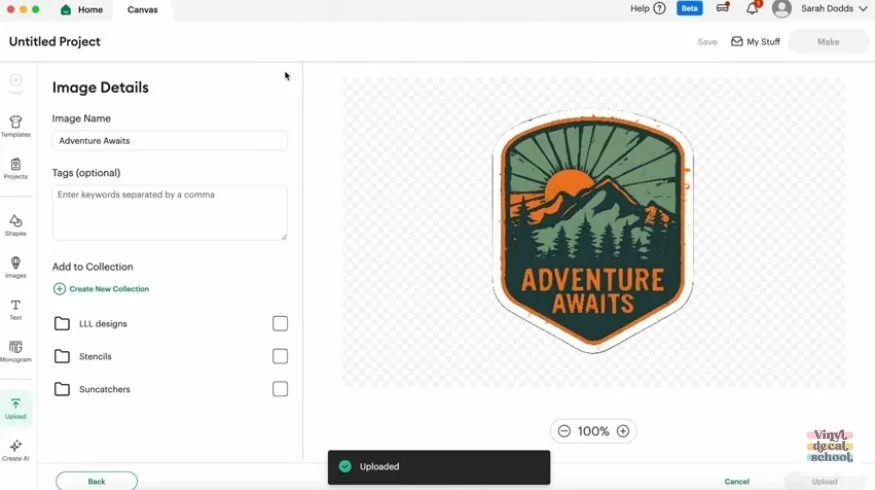
If your SVG or PNG isn’t behaving in Design Space, here’s what to do:
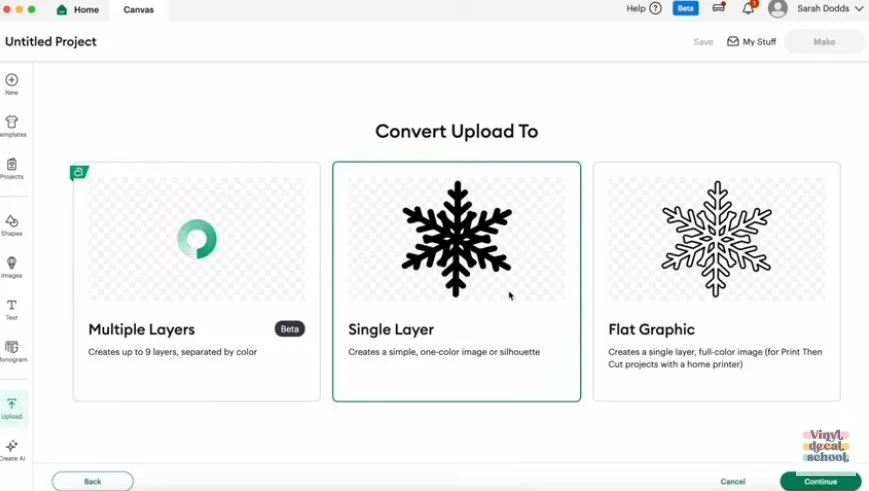
Choose the right file type.
PNG: Best for Print Then Cut or single-colour designs.
SVG: Best for layered projects with colour separation.
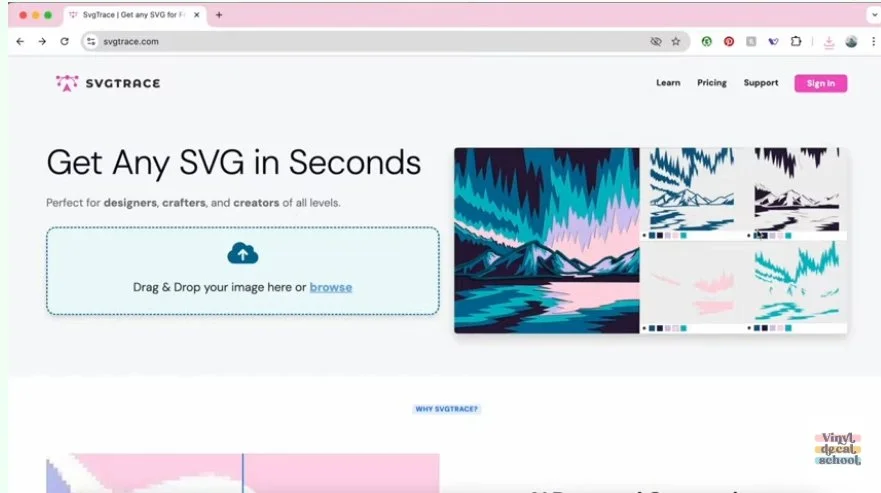
Convert files if necessary. Tools like SVG Trace can help.
Fix blurry images or warning icons. Upscale low-resolution files using an online tool.
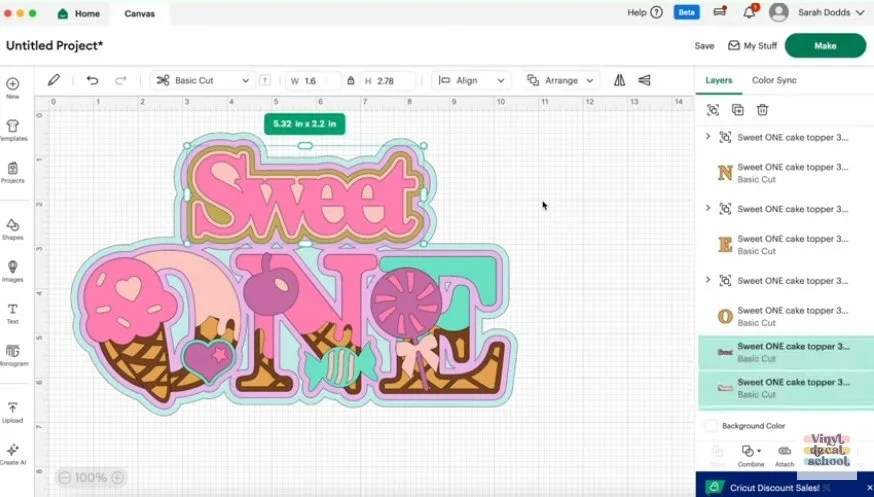
Simplify large files. Huge uploads can slow or crash Design Space — resize or simplify before uploading.
4. Cricut Cutting Only in One Area
If your Cricut is cutting perfectly in one spot but barely scratching the rest:
Check the blade for debris. Remove any bits of vinyl or cardstock stuck to it.
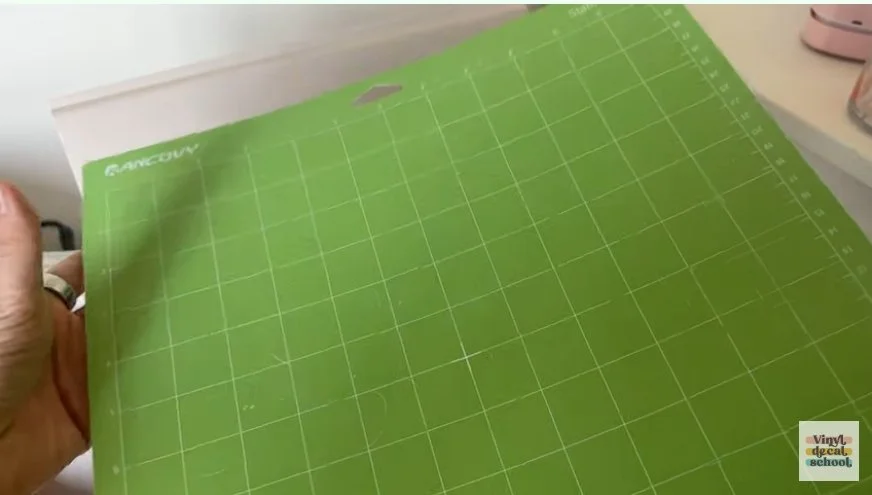
Inspect your cutting mat. If it’s lost its stickiness, your material may shift during cutting.
Clean or re-stick your mat. For tricky materials like glitter cardstock, tape them down or use a stronger grip mat.
5. Cricut Print Then Cut Not Aligned
Print Then Cut alignment issues are a headache, but they’re often fixable.
Try this:
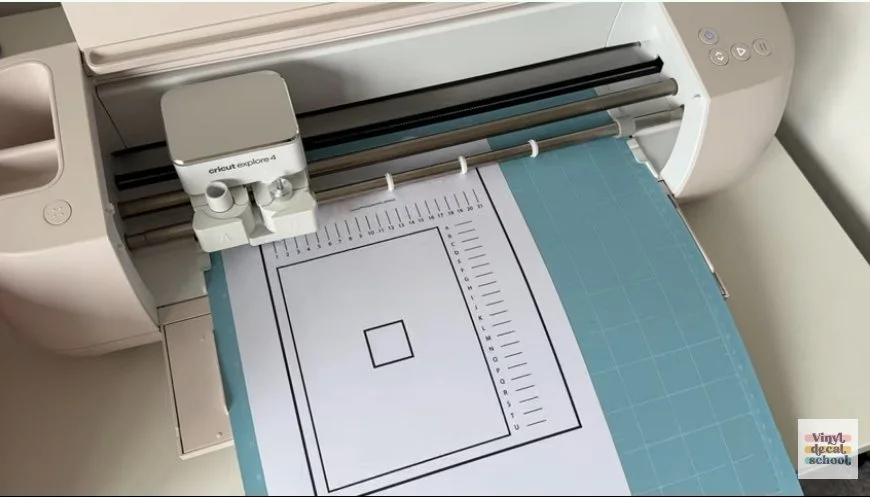
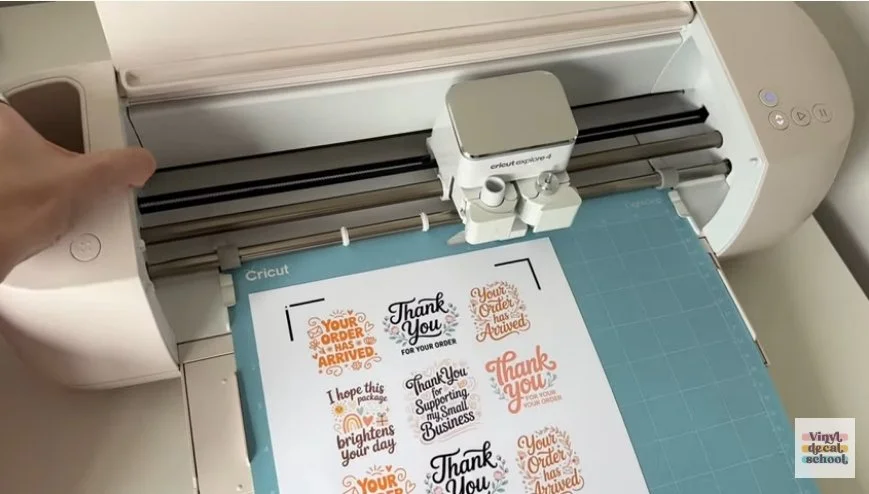
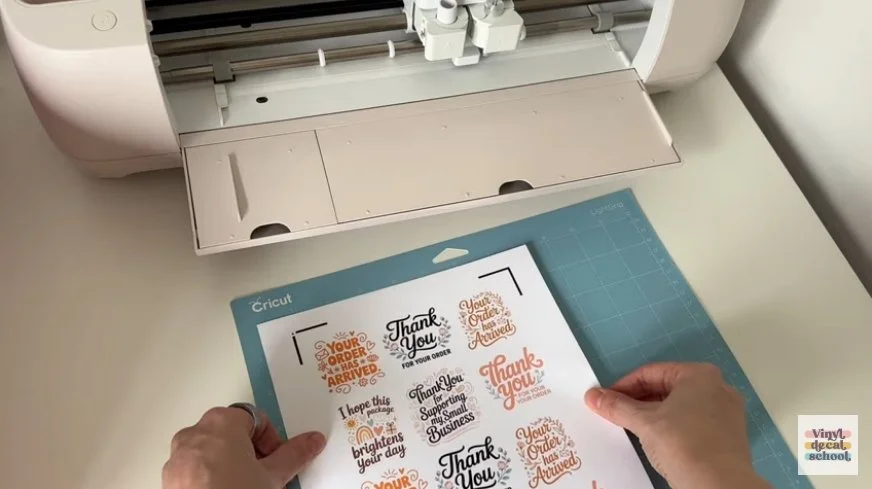
Load the paper correctly. Black arrow in the top left corner, perfectly straight against the mat edge.
Calibrate your Cricut. Do both standard and fine calibration.
Turn bleed off. For stickers, add a small white outline so minor misalignments aren’t visible.
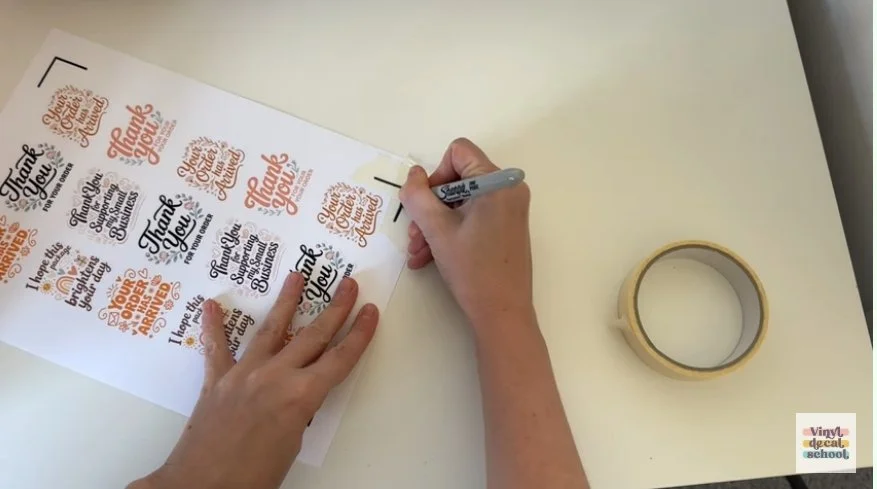
Fix registration issues. If glossy paper prevents the machine from reading the black lines, cover them with masking tape and redraw with a black felt pen.
6. Contacting Cricut Support
If you’ve tried all the above Cricut troubleshooting steps and your machine still isn’t cooperating, reach out to Cricut Support. Sometimes a quick call or chat with their team will solve the problem much faster than scrolling through endless YouTube videos or Facebook threads.
Final Thoughts
Crafting should be relaxing, not frustrating. By following these Cricut Design Space troubleshooting tips, you can fix most issues quickly and get back to enjoying your projects.
Happy crafting — may your cuts be clean, your blades sharp, and your mats forever sticky! ✂️💚